Data Migration Basic Implementation
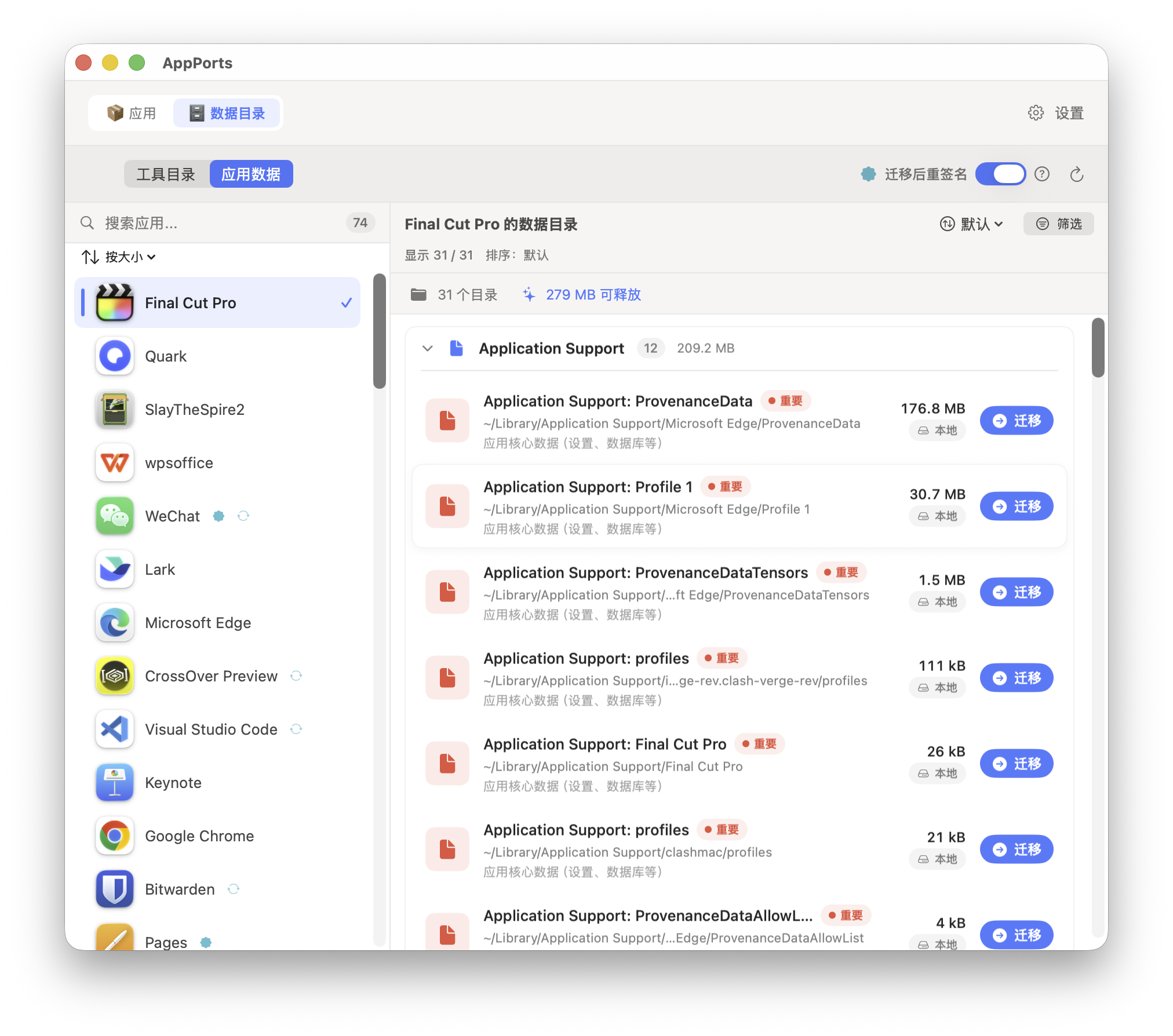
AppPorts' data migration feature migrates app-associated data directories (such as ~/Library/Application Support, ~/Library/Caches, etc.) to external storage to free up local disk space.
Core Strategy: Symbolic Link
Data directory migration uses the Whole Symlink strategy:
- Copy the entire original local directory to external storage
- Write managed link metadata (
.appports-link-metadata.plist) to the external directory - Delete the original local directory
- Create a symbolic link at the original path pointing to the external copy
~/Library/Application Support/SomeApp
    → /Volumes/External/AppPortsData/SomeApp  (symlink)
Migration Flow
flowchart TD
    A[Select data directory] --> B{Permission & protection check}
    B -->|Failed| Z[Terminate]
    B -->|Passed| C{Target path conflict detection}
    C -->|Has managed metadata| D[Auto-recovery mode]
    C -->|No conflict| E[Copy to external storage]
    D --> E
    E --> F[Write managed link metadata]
    F --> G[Delete local directory]
    G -->|Failed| H[Rollback: delete external copy]
    G -->|Success| I[Create symbolic link]
    I -->|Failed| J[Emergency rollback: copy back to local]
    I -->|Success| K[Migration complete]
Managed Link Metadata
AppPorts writes a .appports-link-metadata.plist file in the external directory to identify that the directory is managed by AppPorts. The metadata includes:
| Field | Description |
|---|---|
schemaVersion | Metadata version number (currently 1) |
managedBy | Manager identifier (com.shimoko.AppPorts) |
sourcePath | Original local path |
destinationPath | External storage target path |
dataDirType | Data directory type |
This metadata is used during scanning to distinguish AppPorts-managed links from user-created symbolic links, and supports automatic recovery when migration is interrupted.
Supported Data Directory Types
| Type | Path Example |
|---|---|
applicationSupport | ~/Library/Application Support/ |
preferences | ~/Library/Preferences/ |
containers | ~/Library/Containers/ |
groupContainers | ~/Library/Group Containers/ |
caches | ~/Library/Caches/ |
webKit | ~/Library/WebKit/ |
httpStorages | ~/Library/HTTPStorages/ |
applicationScripts | ~/Library/Application Scripts/ |
logs | ~/Library/Logs/ |
savedState | ~/Library/Saved Application State/ |
dotFolder | ~/.npm, ~/.vscode, etc. |
custom | User-defined path |
Restore Flow
- Verify local path is a symbolic link pointing to a valid external directory
- Remove local symbolic link
- Copy external directory back to local
- Delete external directory (best effort)
If copying fails, automatically rebuild the symbolic link to maintain consistency.
Error Handling & Rollback
Each critical step in the migration process includes rollback mechanisms:
- Copy failure: No further actions taken; clean up copied external files
- Delete local directory failure: Delete external copy, restore original state
- Create symbolic link failure: Copy data from external back to local, delete external copy
This design ensures no data loss and consistent system state in the event of failure at any stage.